
DOCUMENTATION
Activating your WPBackItUp Safe License
Below we walk you through all the steps needed to activate your WPBackItUp Safe license.
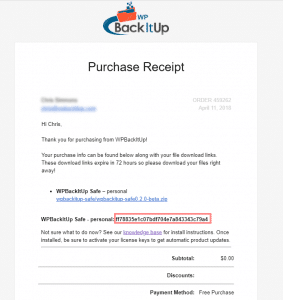
Purchase Receipt
You should have received a purchase receipt email that looks similar to the one below. Your license key can be found towards the bottom of the email. Copy this number to your clipboard so it can be used to activate your license.
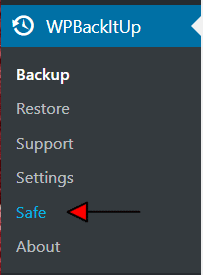
Safe Menu
Once the WPBackItUp Safe plugin is installed the new “Safe” menu item appears under WPBackItUp. This new menu item is used to access the WPBackItUp Safe dashboard.
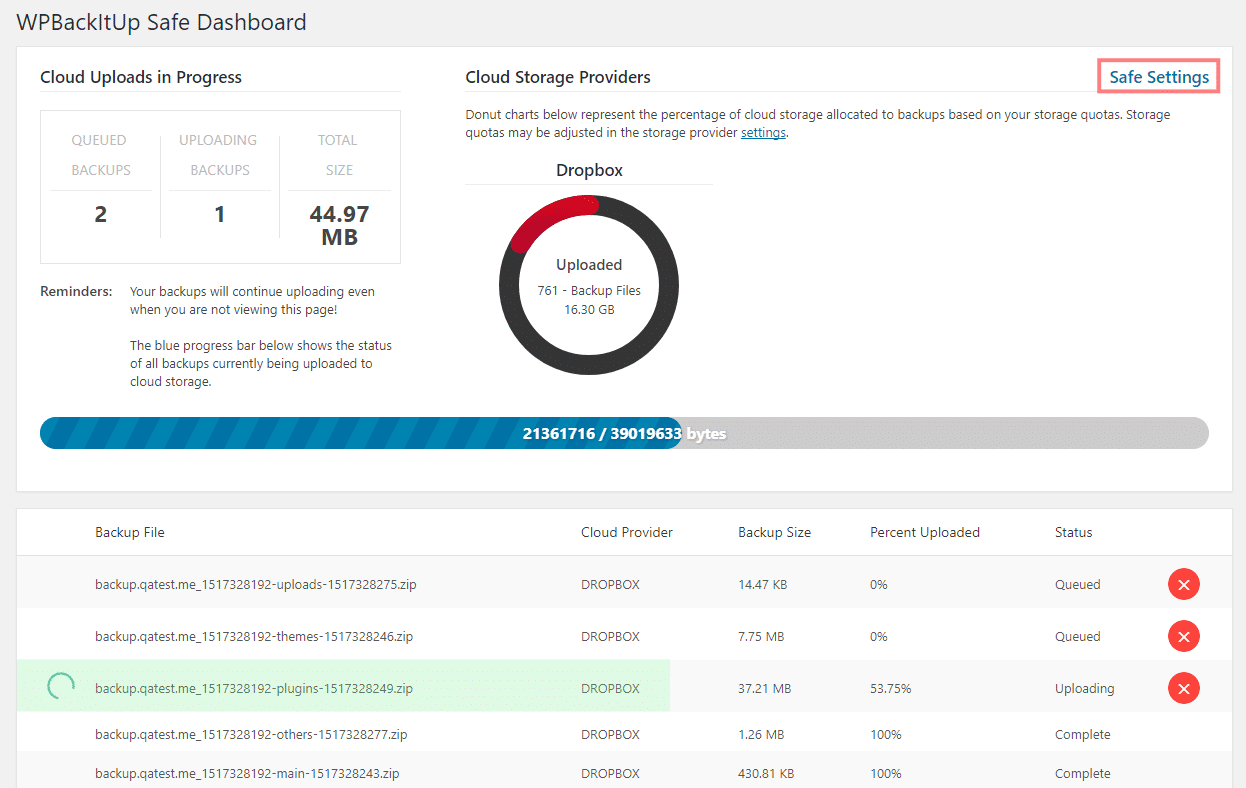
Safe Dashboard
The WPBackItUp Safe Dashboard displays the status of all your recent cloud uploads. From this dashboard, you will be able to view the status of cloud uploads that are currently in progress as well as the uploads that have recently completed. This is also where you will access the “Safe Settings” link which is used to activate your WPBackItUp Safe License.
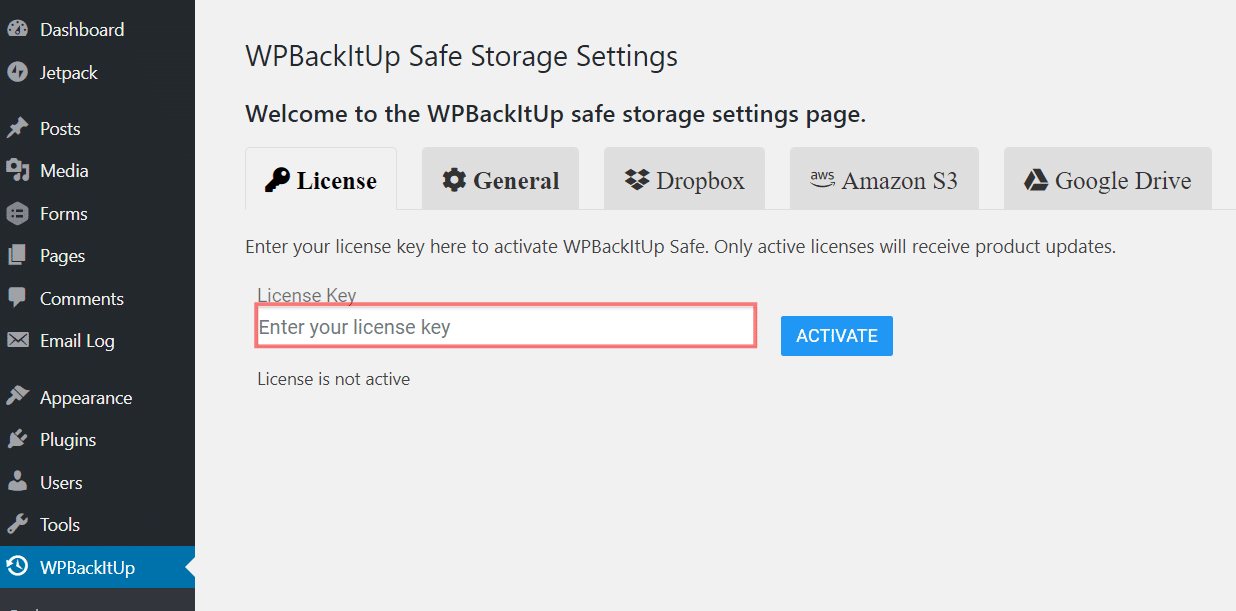
Safe Settings
The Safe settings page is used to activate your license and to configure WPBackItUp Safe. Paste the license key copied from the Purchase Receipt email in the step above and click the “activate” button.
Enjoy WPBackItUp Safe
Once activated WPBackItUp Safe can be used to store your backups safely in the cloud.
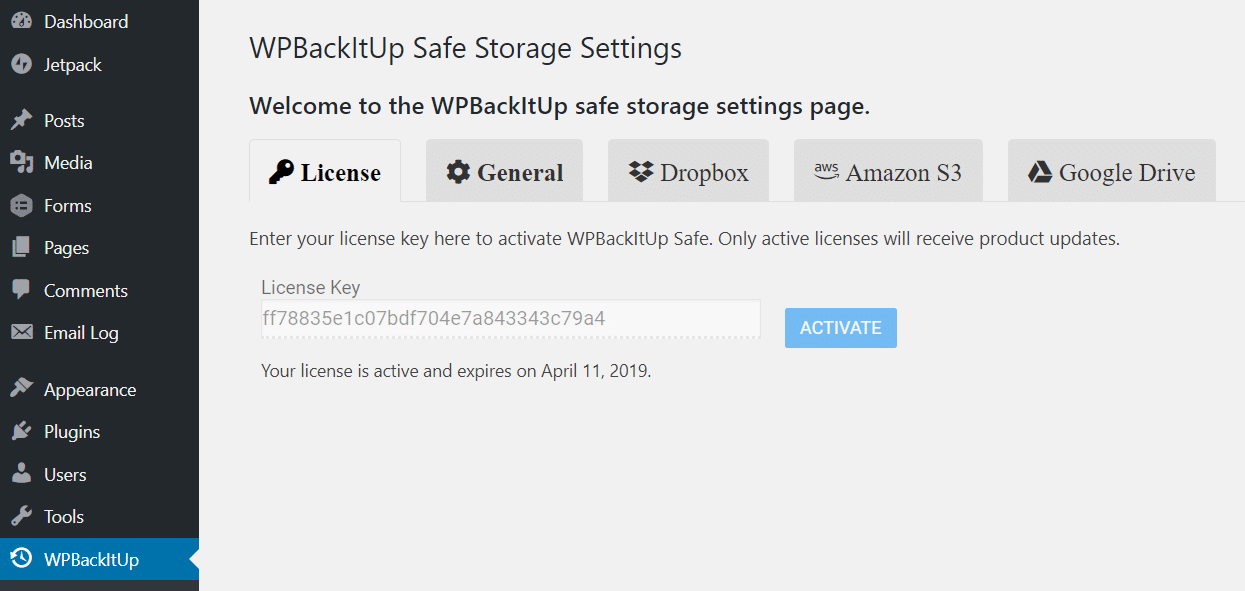
Only customers with active licenses will receive plugin updates automatically.